 Face2Name
Classroom Mode
Classroom Mode is designed for fast login on shared tablets placed in a classroom or common area. Instead of requiring each teacher to type their email and password, Classroom Mode lets staff pick their name from a list and enter a short 4-digit PIN.
Classroom Mode is a convenient login method for shared devices, but is no less secure. Each teacher is still operating under their own Face2Name account and permissions.
How it works
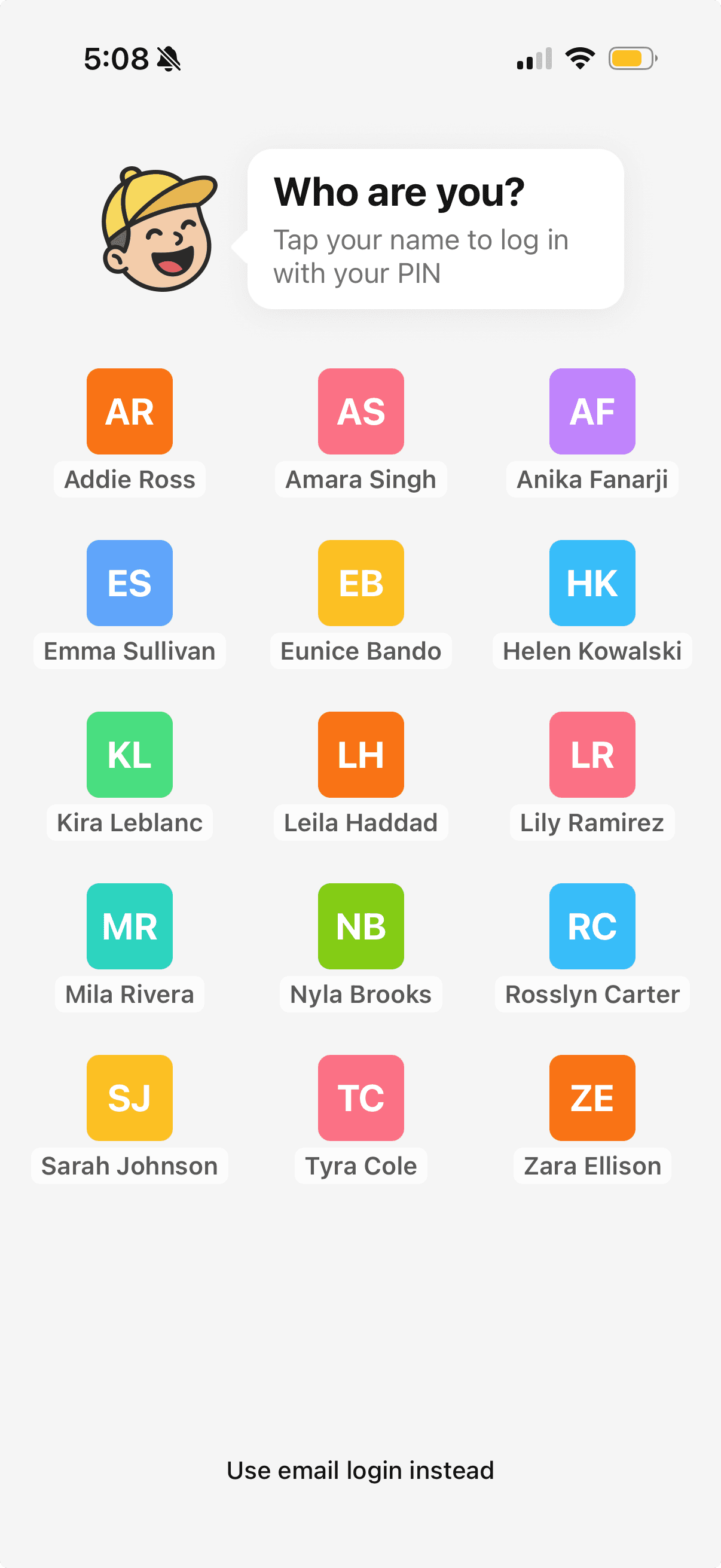
When Classroom Mode is active on a device, the login screen changes from the standard email/password form to a two-step flow:
-
Select your name from the list of staff members in your organization.
-
Enter your 4-digit PIN to authenticate.

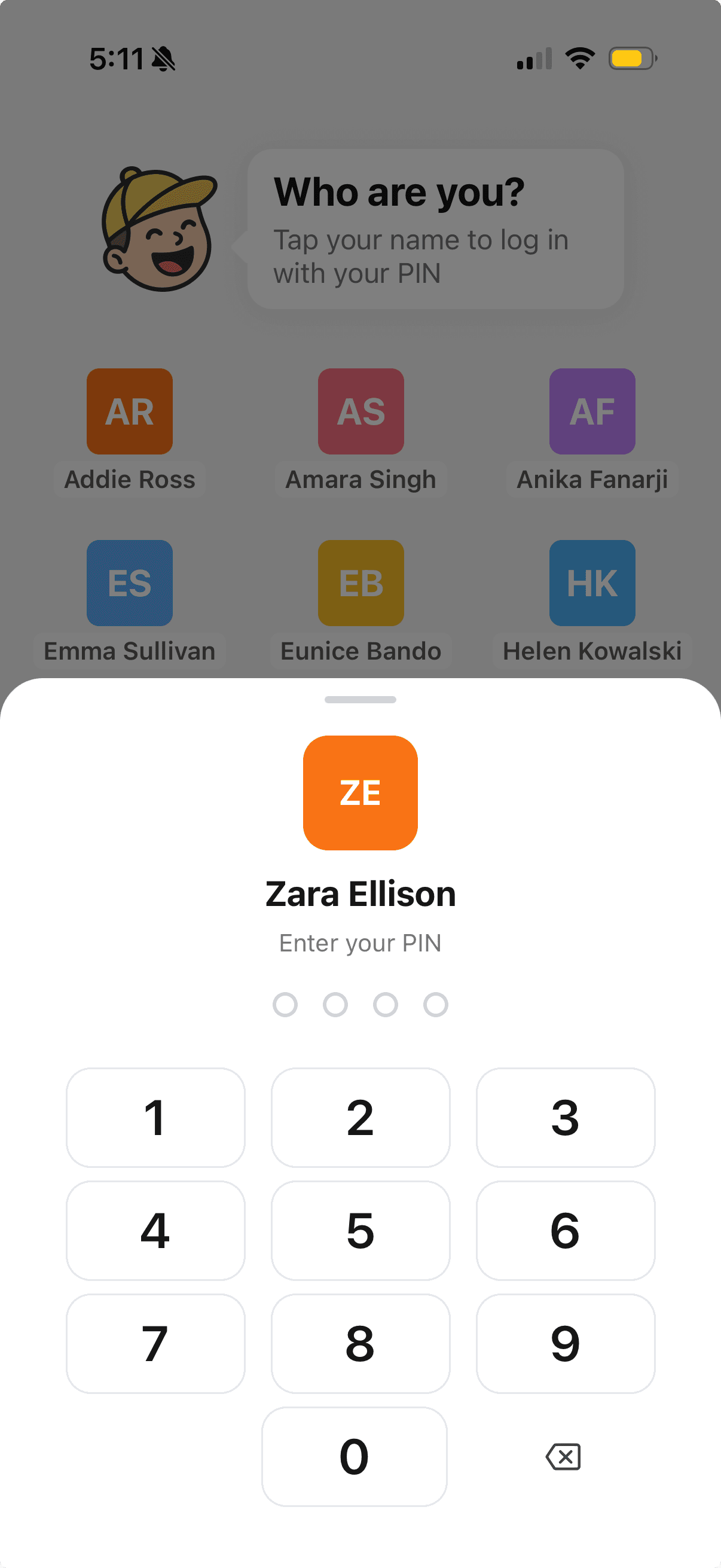
The app signs in as that staff member for the duration of their session. When they come out of the app or put the device to sleep, the app signs out and the device returns to the name-picker screen for the next person.
Setting up Classroom Mode
1. Create a PIN
Each staff member sets their own PIN from the My PIN screen inside the app:
- Open the app and go to Settings → My PIN.
- Tap Set PIN (or Change PIN if one is already set).
- Enter and confirm a 4-digit PIN.
PINs are stored securely and are never transmitted in plain text.
2. Enable Classroom Mode on the device
On the shared tablet, sign in with any staff account, then:
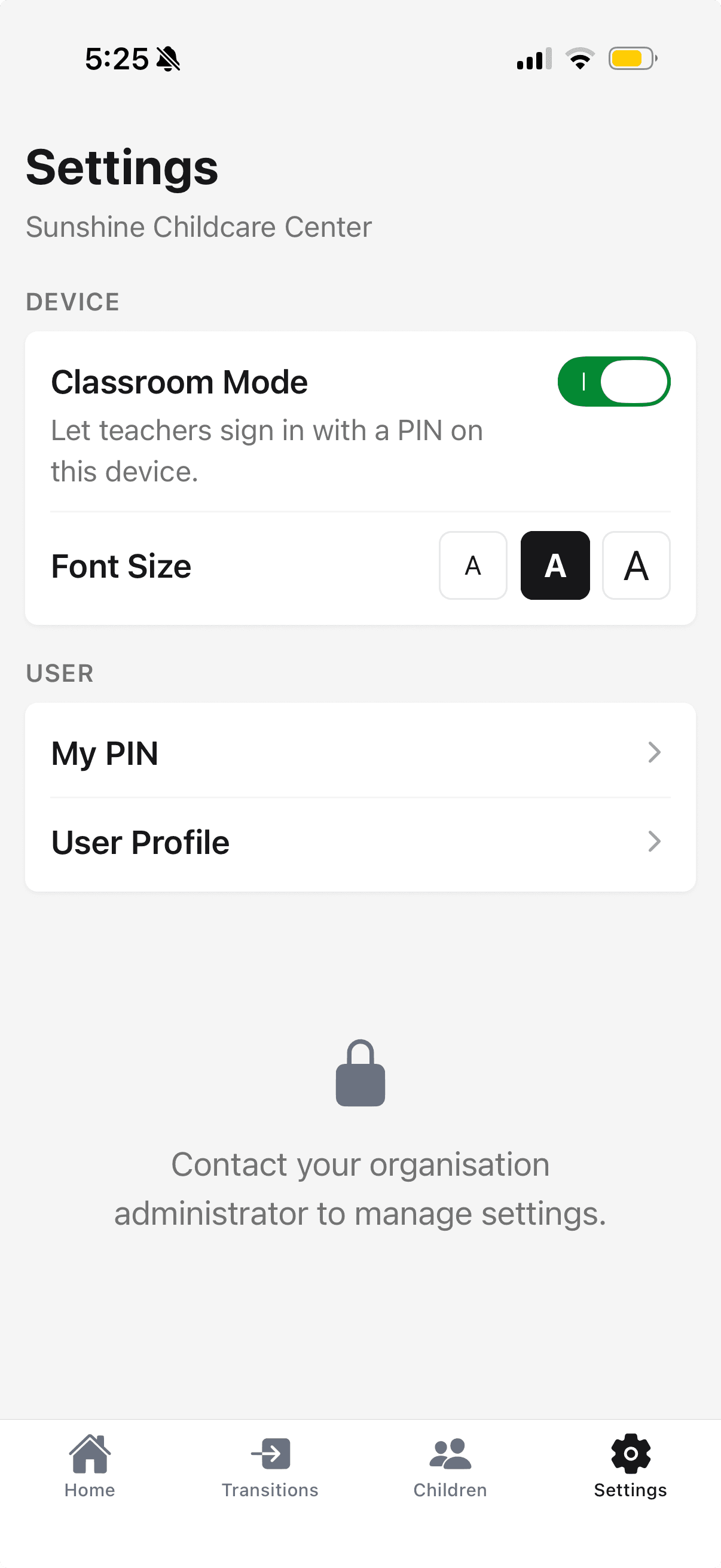
- Go to Settings → Classroom Mode.
- Tap the toggle to enable Classroom Mode.
Permissions in Classroom Mode
Classroom Mode does not change what a staff member can do. Their roles and permissions are exactly the same as when they sign in with email and password.
Frequently asked questions
What if a staff member forgets their PIN? They can reset their PIN by signing in with email and password and setting a new PIN from the My PIN screen. An administrator can also reset a staff member's PIN in Settings → Staff → [Staff Member] → Reset PIN.
Can a staff member use both PIN login and email/password login? Yes. PIN login is only active on devices where Classroom Mode is enabled. A staff member can always use their email and password on any device.
Is a PIN required to use Classroom Mode? Staff members without a PIN set will not be able to use PIN login initially, but they can still log in with their email and password, then set a PIN from the Settings → My PIN screen.